 Structa
The answer
Try StructaCAD if you need to generate drawings from ETABS and continue editing them in AutoCAD. Check how the model transfers, which views are produced and what happens when the model changes. Treat update behavior as its own requirement rather than assuming every ETABS-to-CAD workflow stays synchronized.
Put it into practice
Decide whether you need a model link, drawing automation, or both.
Test how grids, stories, sections, and member identities transfer.
Compare which plans, elevations, and details are generated automatically.
Review update behavior and final CAD editability on a real project.
An example of the output
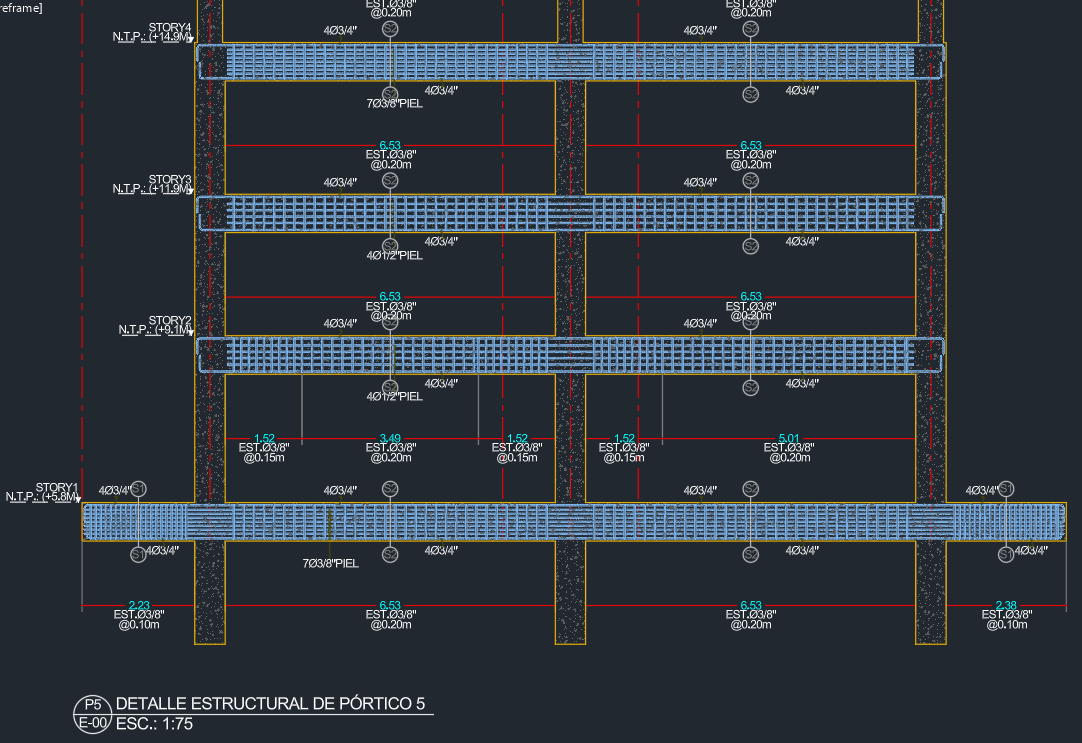 Explore the drawing ↗
Example output from StructaCAD. Your drawings will depend on the model and the options you choose.
Before you export
- Use the same model and deliverable list for each trial.
- Record the remaining import, reinforcement and drawing adjustments.
- Check plans, compatibility and support against your office's requirements.
Continue with the complete workflow
Compare the available drawing types with your delivery requirements and inspect a full-size example.
Structural drawings: plans, elevations and detailsA little more detail
Where should I start if I am new to StructaCAD?
Open StructaCAD and start with a small model you know. Check the stories and sections, generate one view and review it in CAD. You can enter without signing in; check the plans for export terms.
What happens when my model changes?
Bring in the updated information and regenerate the affected drawings. Compare versions before issue. Review any edits made to the DXF in AutoCAD separately when replacing an export.